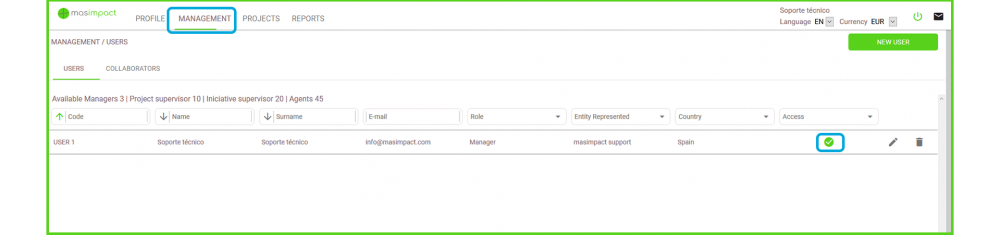
This section deals with the management and assignment of users.
There are different types of "Roles" with which to access.
Depending on the role assigned, the user is allowed to view and enter different information.
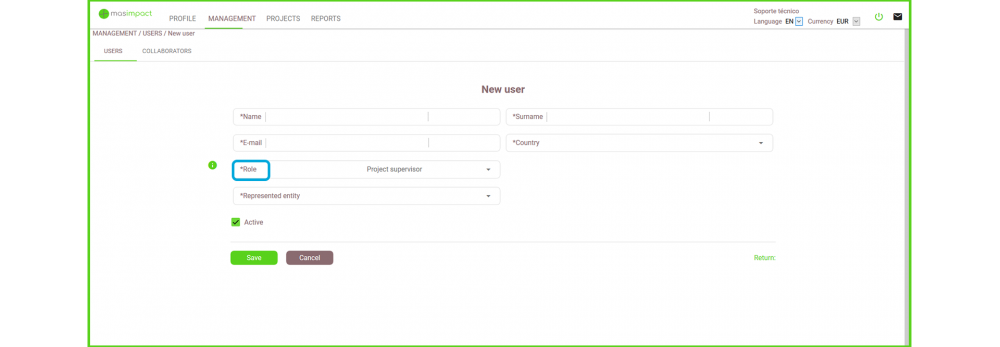
If you would like to create a new user you will have to click in "New User":
 Name and surname of the user
 The user's email: Needed to access the tool
 Role: A user's ability to enter data,review and amend it, is determined by the assigned role.
User roles
The following chart outlines the different roles:
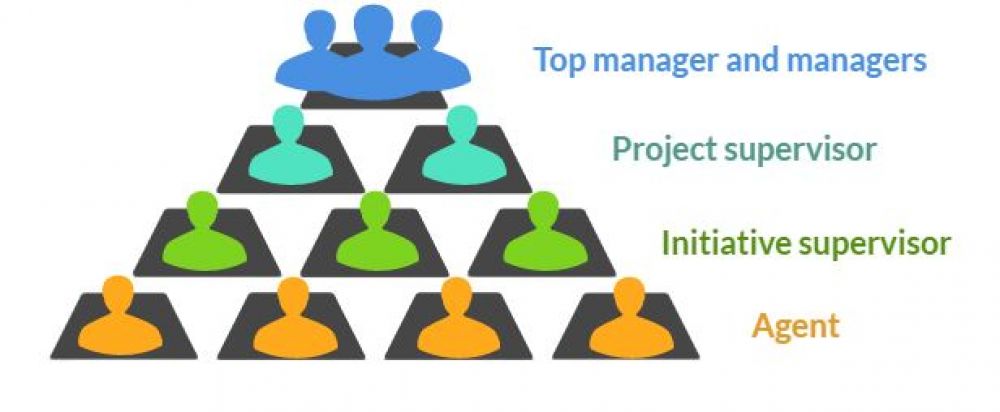
Top manager and managers
The "top manager" and managers are users who can manage and access all the projects and initiatives of the entity. They are the highest role. They have a global vision and can access all the menu options: Profile; Management; Projects, Reports and benchmarking. The only difference between the two is that there is only one Top Manager and it is mandatory to identify one per entity so that the tool works correctly.Project supervisor
The project supervisor role grants the user permission to view and edit all the information of the projects to which it is assigned. This user in turn can create new projects and grant permissions to other project supervisors and initiative supervisors. This user can also create new users and collaborators in the Management section.Initiative supervisor
The initiative supervisor role grants the user permission to view and edit all the information of the initiatives to which it is assigned. This user in turn can create new initiatives under a project and grant permits to other initiative supervisors and agents. This user can also create new users (with the initiative Supervisor or Agent role) and collaborators in the Management section.Agents
This role has restricted access to edit the information of contributions, outputs or impacts, depending on the permissions that has been granted. This role will not be able to edit the initiative information or create new ones.View-only managers (New role)
New role created to give users access to the platform but cannot modify any data. Has access to all project/initiative data and report generation. Role intended for auditors or senior management.ASSIGN A USER TO AN EXTERNAL COLLABORATOR TO THE ENTITY
If you wish you can also give a user to one of the initiative's collaborators external to the entity. To do this, use the box: "Entity represented". This label is used to differentiate the users that work for the entity and the external ones.ACTIVATE AND DEACTIVATE THE ACCESS OF THE USERS
Clicking on the Active tick will automatically send an email to the user notifying his registration and access codes to masimpact.You can also disable users to block their access to the tool.